Gaming guide
Gaming PC Graphics Artifacts: What to Check
Record coloured blocks, flicker and graphics corruption without assuming your gaming PC needs a new GPU.
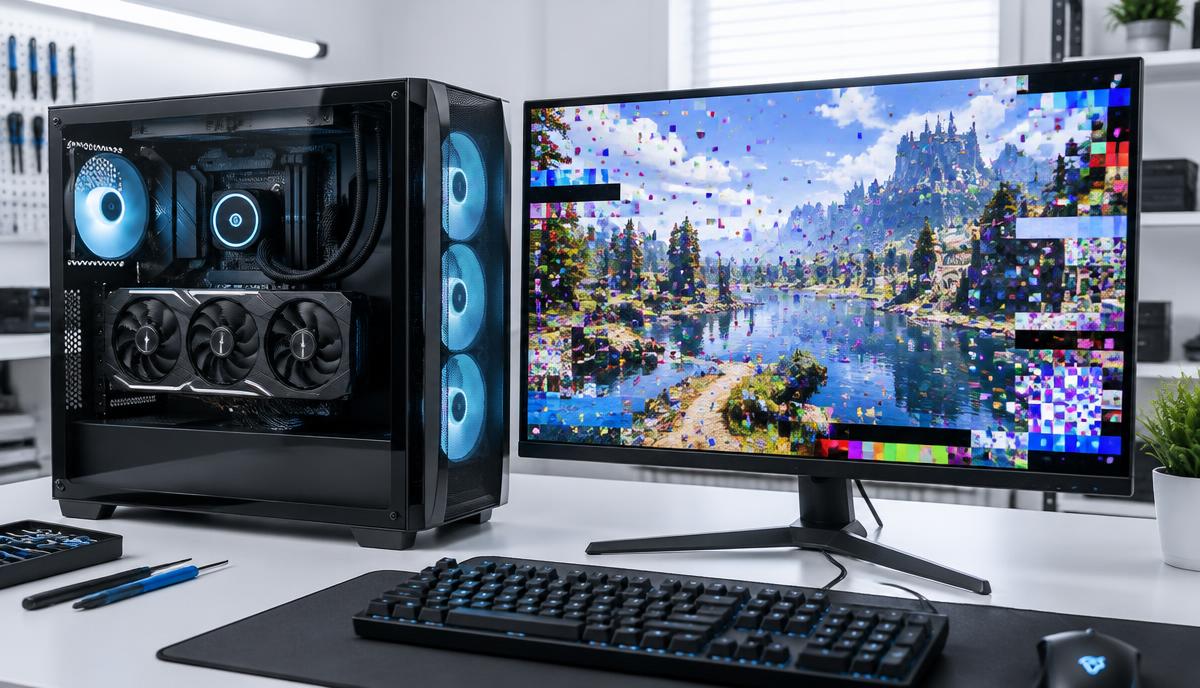
Coloured blocks, broken textures or flickering images are often called graphics artifacts. Record whether they affect one game, the desktop or the startup screen before changing hardware.
What the symptoms can mean
Display cables, drivers, temperatures, memory and graphics hardware can all enter the diagnosis. Corruption limited to one game differs from faults visible across different applications and displays.
What to do next
Return optional overclock settings to their documented defaults and test a suitable cable or monitor when practical. Record driver versions and recent changes. Stop repeated heavy-load testing if the machine overheats or shuts down.
Useful evidence for a GPU assessment
Take a photo of the display and, if possible, a screenshot of the same fault. Tell the team whether both show it; neither test alone is conclusive, but the comparison adds context. Include the GPU model, power supply and whether the issue began after an upgrade.
Do not start by dismantling the graphics card
Removing a cooler or disturbing thermal pads can introduce additional problems. External checks and controlled component testing should precede internal GPU work. Repair feasibility depends on the fault and card; assessment is not a guarantee that every graphics card can be repaired.
When to arrange a diagnosis
If the problem continues after safe basic checks, a proper diagnosis is the best next step. It helps separate a replaceable part from a deeper board, power or software issue before any repair is approved.
Common questions
Do artifacts prove the GPU has failed?
No. Cable, software, temperature and other hardware issues must be considered.
Will a new driver always fix artifacts?
No. A driver change may help a software issue but cannot repair physical hardware damage.